
Risk Intelligence
SoterAI's Risk Intelligence layer transforms your organization's safety data into actionable, forward-looking insights. It continuously ingests incident records, hazard inventories, controls, and related documentation to generate dynamic risk scenarios tailored to your operations, environments, and teams.
Why Risk Intelligence matters
Proactive prevention
Instead of reviewing past incidents, Risk Intelligence forecasts “Next Incident Likely To…” so you can address emerging hazards before they lead to injury.
Contextual, data-driven insights
Combines your internal data (incidents, hazards, controls, procedures) with external standards to highlight missing or ineffective controls in the precise context where they matter.
Agentic AI integration
Supports SoterAI’s agentic workflows and Chat Assistant by providing up-to-date scenario inputs — enabling automated corrective-action plans, inspection workflows, and report generation.
Step 1 — Upload your data
Risk Intelligence is powered by the files you upload in Data Sources. The more relevant data you provide, the more accurate your risk scenarios will be.
Supported file types: Data Sources accepts the same file types as General Chat — documents (PDF, DOC, DOCX), spreadsheets (XLSX, XLSM, XLS, CSV), presentations (PPT, PPTX), as well as images, videos, text and email files. Files can be up to 200 MB, and videos up to 1 GB. For the full list, see File Upload Limits in SoterAI.
What to upload: incident logs, hazard inventories, control checklists, safety procedures, and policy documents.
How to upload
- 1Go to Data Sources in the left navigation and select the Internal Data tab.
- 2Click Upload data (or drag and drop your files).
- 3In the Upload Files window, select your file(s) and click Upload.
Only files on the Internal Data tab feed into Risk Intelligence. Files on the External Data tab are used for compliance checks only.
Step 2 — Update Risk Intelligence with your files
Every enabled file on the Internal Data tab feeds into Risk Intelligence. There is no need to process files one by one.
- 1On the Internal Data tab, click Refresh to update Risk Intelligence with your latest files.
- 2Check each file’s Risk Intelligence status icon, shown next to its Enabled badge. Hover over the icon to see the status — a green tick means Risk Intelligence has been successfully updated for this file.
- 3Go to Risk Intelligence in the left navigation to see the results (see Step 4).
Intelligence Credits: Processing a file extracts Risk Intelligence records from it — each record consumes one Intelligence Credit from your organization's allowance. A single file may contain multiple records. Enterprise plans include 50,000 credits by default. To check your current usage or understand your limits, see Monitoring your Intelligence Credits.
Only files with safety content — incidents, hazards or controls — produce risks and records. A file without that kind of content, such as a software setup guide, is still processed but adds nothing to Risk Intelligence. Keep general reference material on the External Data tab instead.
What happens during processing
SoterAI runs OCR, parsing, and indexing on your file. It extracts discrete incidents, hazards, and controls, then merges these into a unified risk register. Scenario scores are then continuously recalculated using a model trained on over 20 million industry data points and global safety standards.
Step 3 — Managing your data sources
Each file on the Data Sources tabs has a three-dot (⋯) menu on the right of its row with Rename, Move, Disable and Delete.
Disabling a file (without deleting)
If a document becomes outdated or irrelevant, you can disable it without losing its metadata:
- 1Locate the document in its folder.
- 2Open its three-dot (⋯) menu and click Disable.
The file remains in your repository but is excluded from all AI operations. To re-enable it, click Enable on the same file.
Deleting a file
- 1On the Data Sources screen, find the document.
- 2Open its three-dot (⋯) menu and click Delete.
- 3Confirm the deletion.
Deletion is permanent and cannot be undone. Only delete content you are certain is obsolete.
If a file shows an Error status
- 1Delete the file using the three-dot (⋯) menu → Delete.
- 2Verify the file meets the maximum size limit and is a supported file type (shown in the upload window).
- 3Upload it again.
Step 4 — Exploring the Risk Intelligence page
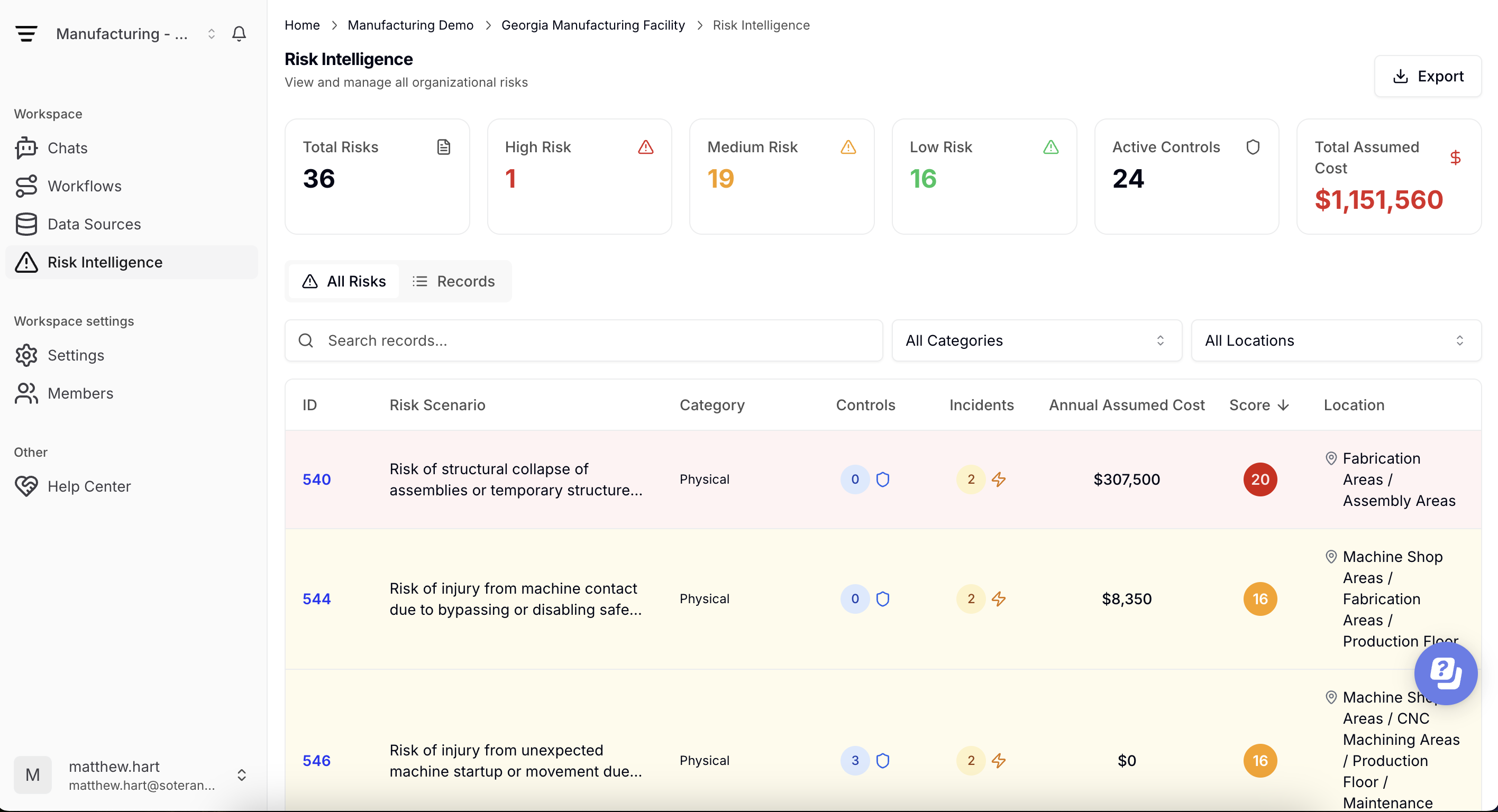
Once your files are processed, go to Risk Intelligence in the left navigation. The page brings together all the risks and records SoterAI has extracted from your organisation's data, and has two tabs: All Risks and Records.
If you see No Risk Data Available, no risks have been extracted from your data yet. Click Go to Data Sources, upload files with safety content to the Internal Data tab and update Risk Intelligence as described in Steps 1 and 2.
The All Risks tab
The All Risks tab lists the risks identified in your data. Summary counters across the top give you an overview at a glance:
| Counter | What it shows |
|---|---|
| Total Risks | The number of risks identified |
| High Risk, Medium Risk, Low Risk | How many of those risks fall into each risk level |
| Active Controls | The number of controls currently in place |
| Total Assumed Cost | The estimated total cost associated with the identified risks |
The Records tab
The Records tab lists the individual records extracted from your files — the controls, hazards and incidents that Risk Intelligence is built on. Its counters show:
- Total Records — all records across your organisation
- Controls, Hazards and Incidents — how many records there are of each type
Searching and filtering
Both tabs have a search box for finding specific entries, and filters on the right to narrow the list:
- All Categories (All Risks tab) — show only risks in one category: Physical, Biological, Chemical, Ergonomic, Psychosocial, Environmental, Electrical or Other.
- All Types (Records tab) — show only one type of record: Control, Hazard, Incident or Other.
- All Locations (both tabs) — focus on a single location, or compare locations one at a time.
Combine search and filters to find the risks most relevant to your team — for example, ergonomic risks at one site.
Step 5 — Acting on your risks
Exporting
Click Export in the top-right corner of the Risk Intelligence page and choose XLSX or CSV to download your data — for example, to share it with colleagues or include it in a report.
Using Risk Intelligence in chat and workflows
Your risk data feeds directly into SoterAI's Chat Assistant and agentic workflows. You can ask questions like:
Workflows can also draw on Risk Intelligence, for example to:
- Plan corrective actions — turn the top control gaps into Actions assigned to your team
- Target inspections — focus inspection workflows on the highest-risk areas
- Build reports — include risk summaries in audit and compliance reports
Best practices
- Keep data current — Upload new incident logs regularly and click Refresh on the Internal Data tab so your risks reflect your latest data.
- Use the Internal Data tab correctly — Misclassifying files (e.g. putting incident data on the External Data tab) means it won't feed into Risk Intelligence.
- Weekly reviews — Make a quick check of your High Risk count and the risks behind it part of your routine to catch emerging hazards early.
- Turn risks into actions — Ask SoterAI in chat to create Actions for the risks you want to address, so follow-up is tracked. See Managing Actions.
- Compare locations and categories — Use the Locations and Categories filters to see where risks concentrate and which hazard types need the most attention.
Was this article helpful?